
Part 1: Child Support Overview
Part 2: Get Started and Enter Essential Details
Part 3: Spousal Support and Spousal Maintenance Adjustments
Part 4: Non-Joint Children Adjustments
Part 5: Support Obligation Adjustments
Part 6: Comments, Settings, and Exporting
Comments, Settings, and Exporting
This post follows Part 5: Support Obligation Adjustments and is the last segment in Legal Thunder’s 2025 Guide to Calculate Child Support in Colorado series. This post assumes that the previous parts in the series have been reviewed and prior steps have been completed. This part 6 focuses on adding comments to your child support worksheet, configuring your worksheet export, and actually exporting the calculation into a child support worksheet you can present to the other party and to the Court.
Comments
Click on > Comments to open up the section. Include here any additional information or comments relevant to the calculation that were not captured in the previous entry fields. The text entered into this field will be included in the worksheet PDF export in the Comments section. Do NOT include any comments you want to keep private.
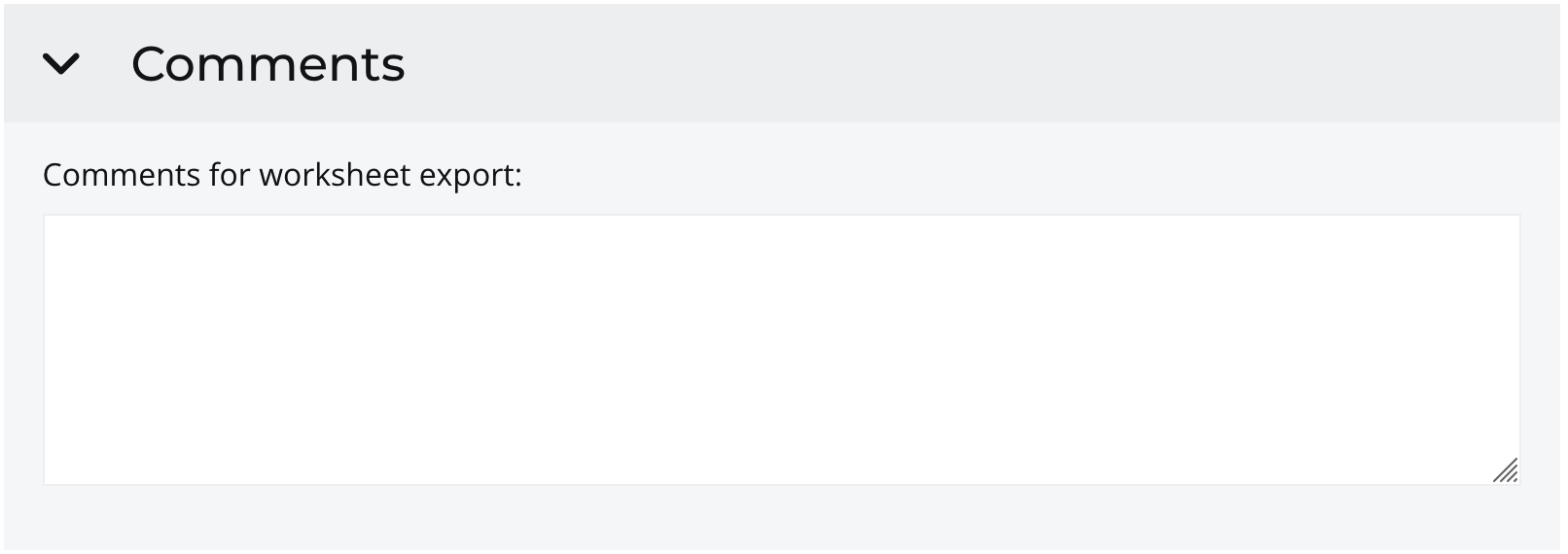
For example, if a particular calculation is supposed to cover a certain time period, such as the three months before the Petitioner received a significant income raise, you could specify in the comment section, “January through April, Petitioner at $____ income per month.” Then, for the other worksheet that uses the Petitioner’s increased income, you could specify in the comment section for that other worksheet, “May and ongoing, Petitioner at $____ per month.” If you want to include a note to whoever reviews the worksheet that a party’s income does not include overtime, you could include that in the comments section, “Respondent’s income does not include overtime.” If you do not wish to include any comments, you can leave this section blank.
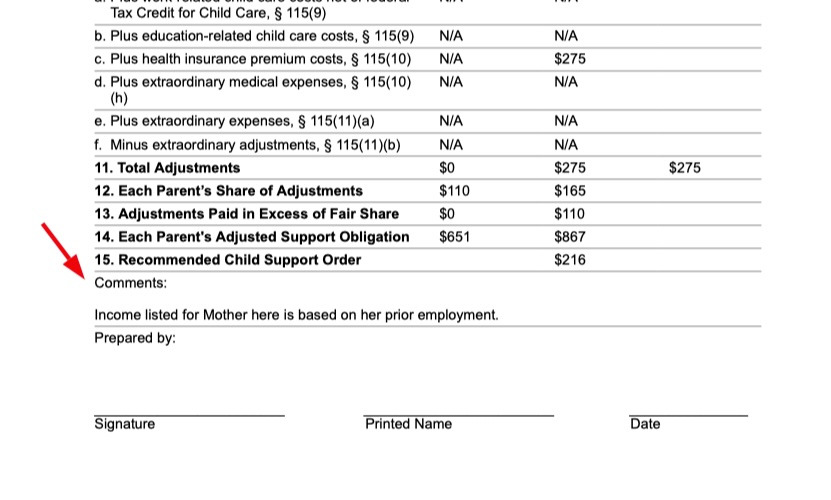
Comments entered in this section appear at the bottom of the child support worksheet, just above the signature line:
Export Settings
Export settings allows you to input the subject children’s information for the worksheet and change how the parties’ names are displayed in the child support calculation. Click on > Export Settings to open up the section.
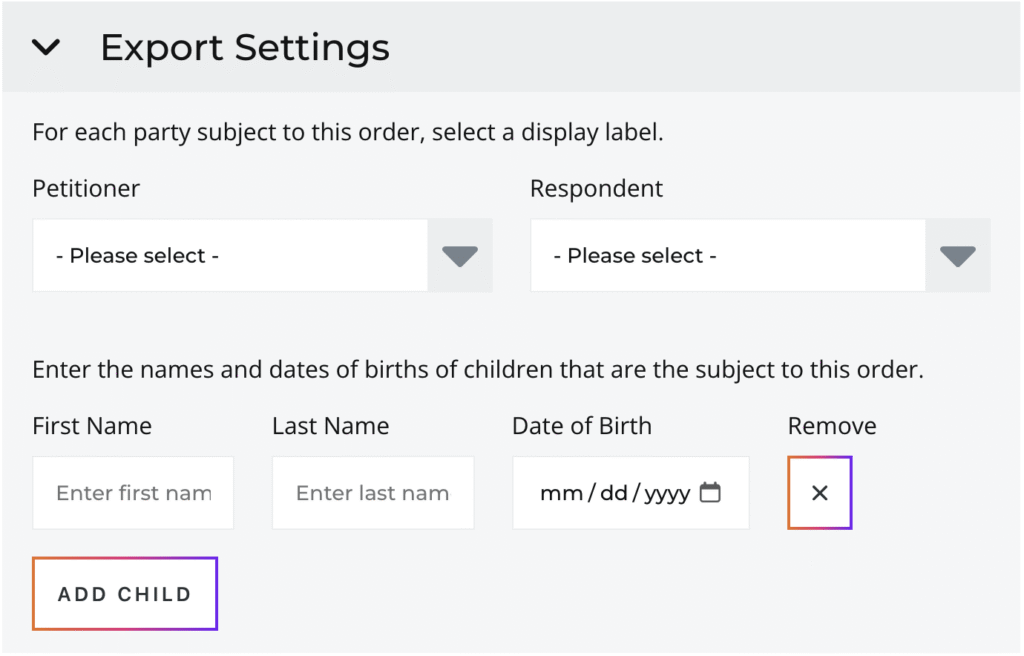
If you’d like the child support worksheet you export to display each party with a label other than Petitioner or Respondent, select your preference here. The next set of inputs allow you to enter the details for the children subject to this support order. First ensure the correct number of children is accounted for. Use the ADD CHILD and Remove X buttons to add or remove rows as needed. There should be a row for each child. Then enter the First Name, Last Name, and Date of Birth of each child.
TIP
If you are entering a split custody scenario where both parties have at least one child with overnights more than 50% of the year, only enter details here for the children that correspond with the number of overnights indicated in the overnights section of this calculation.
Information for the worksheet’s case caption, that is, all the court details that appear in the table at the top of your court filing, comes from your case profile. Make sure you have filled out the case profile to auto-populate the case caption part of the worksheet.
Calculation Settings
Click on > Calculation Settings to open up the section.
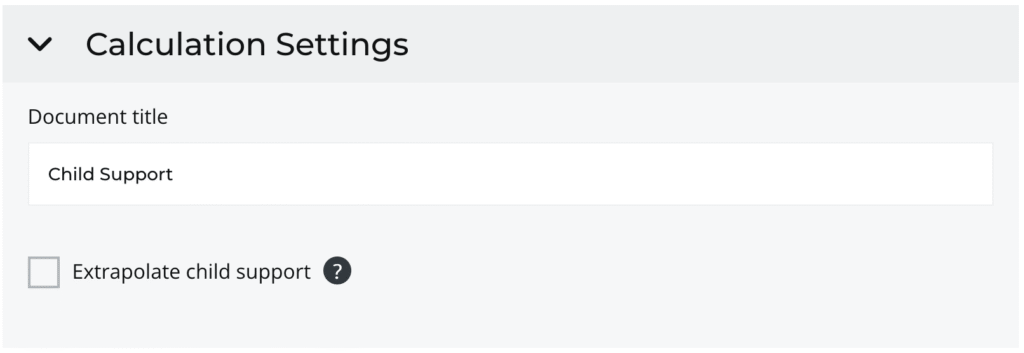
Edit the Document Title to help differentiate this calculation from other calculations in your case dashboard when evaluating different scenarios or entering split custody calculations.
In this section you’ll also find the Extrapolate child support option. Check this option if you’d like the calculator to apply the child support schedule beyond the $30,000 combined income limitations set by C.R.S. § 14-10-115 (7)(a)(VII). Note that this will only apply for cases with a combined gross income of over $30,000.
Save Your Progress
Click on the SAVE button to ensure any final changes are recorded.

Export
Click on the EXPORT button to open up the Export modal window and begin the export process.

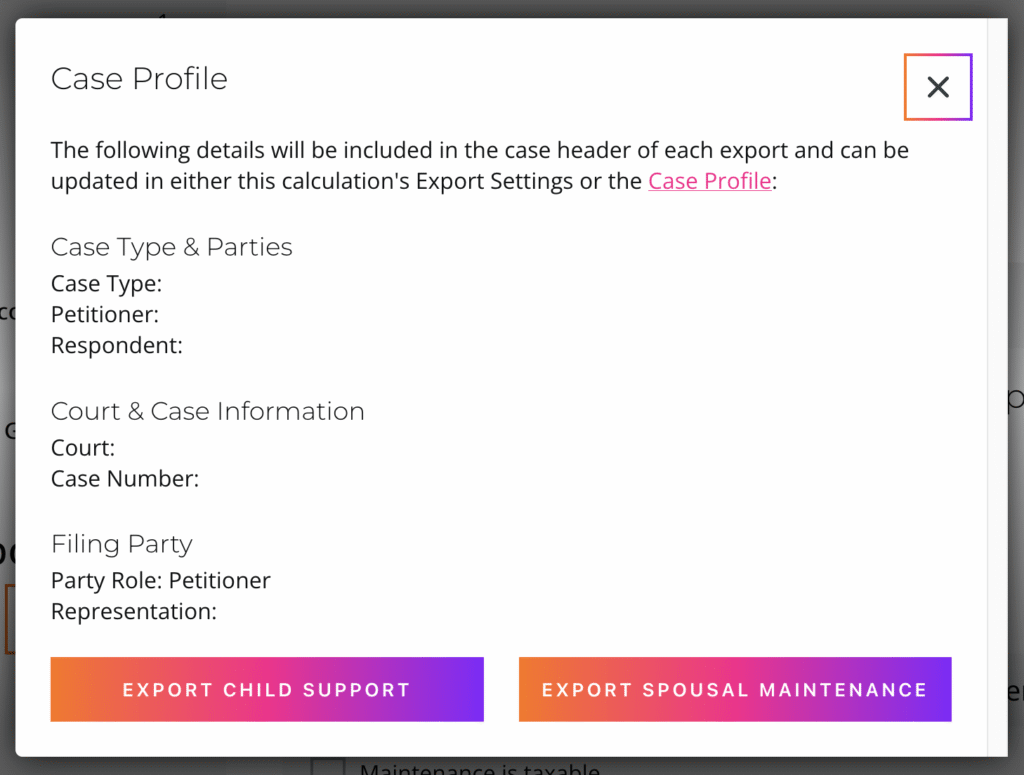
Review all the information and ensure all the details are correct. If any case or court details need to be updated, navigate to the Case Profile page and make any needed updates. If any details need to be changed on the Filing Party section, navigate to your Account page and follow the link to create or edit your Filing Party Profile.Once you have confirmed the case details are correct, click on the EXPORT CHILD SUPPORT button. The PDF export will open in a new browser tab. Download the PDF and complete the Prepared By section. Sign your name on the Signature line, write your name in print letters on the Print Name line, and fill in the date on the Date box. If you selected the Apply calculated option in the Spousal Maintenance For This Relationship section, click on the EXPORT SPOUSAL MAINTENANCE button, download the PDF, and fill out the Prepared By section.
Disclaimer
This guide is intended for informational purposes only and is not a substitute for legal advice. The information provided in this guide is generalized, and every case is different. If you are not sure whether a particular part of this guide should apply to you as described or not, please check with an attorney or limited license paralegal.